Smarters Player is the world’s largest and most reliable IPTV/OTT streaming platform,
delivering nearly 3000 TB in streaming content per month to thousands of customers
around the globe.
A simple user interface and an extensive collection of HD channels offer us the most
satisfactory IPTV service in the USA, Canada, Latin America, UAE and the UK. We
broadcast thousands of live channels to stream premium HD content. Our existing
customers praise the quality of the content we deliver through our IPTV service.
We all know how annoying it could be when you want to download an app, software, or program and you can’t seem to find it
on your Amazon firestick options. Hence, we made this guide to assist you in
downloading and navigating through Smarters Player for Amazon Fire TV Stick with
ease.
Search for and install the Downloader App from the Amazon Appstore. Once the app is
installed, please do NOT open it yet.
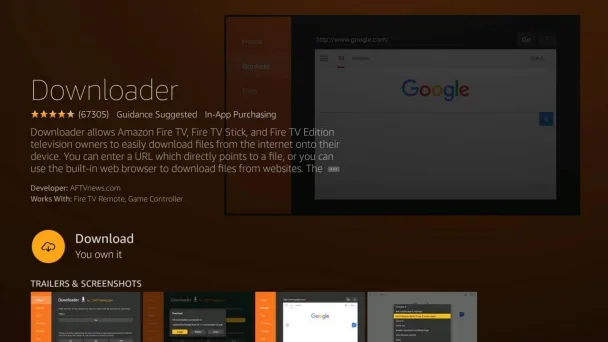
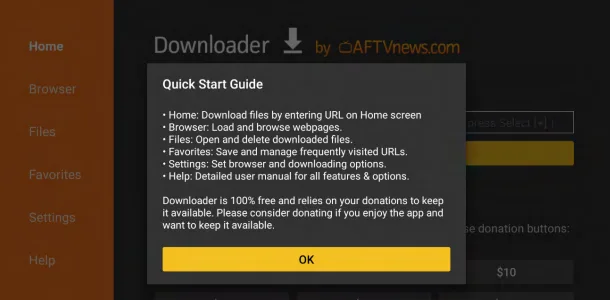
Now that Downloader is installed, and
you haven’t launched it yet, you need to change a setting on your device.
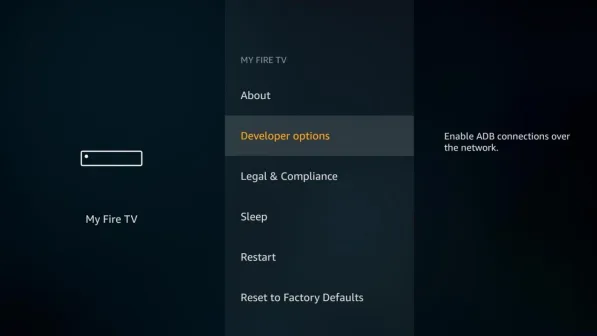
If you have any Fire TV box, Fire TV Stick, Fire TV Stick 4K, or Fire TV Cube, navigate
to Settings > My Fire TV > Developer Options
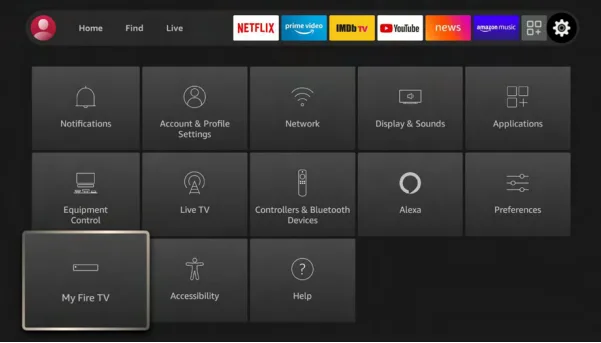
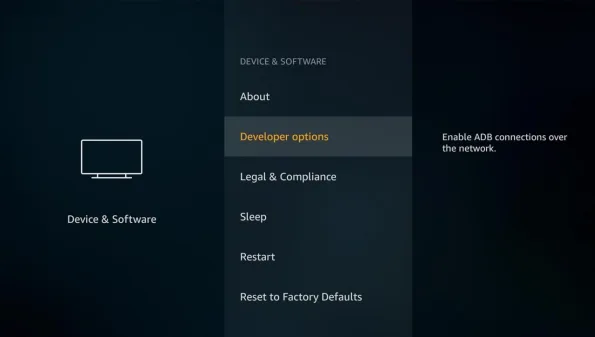
If you have any Fire TV Edition television, navigate to Settings > Device & Software >
Developer Options
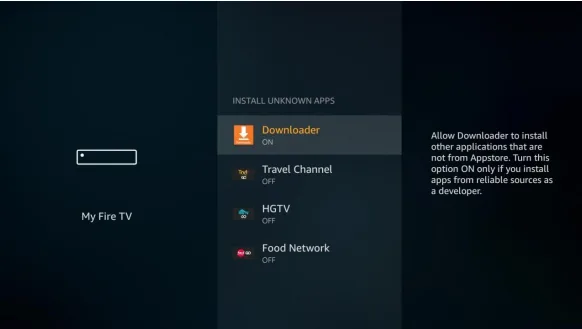
If you have a Fire TV Cube 2nd Gen, Fire TV Stick 3rd Gen, Fire TV Stick Lite, Fire TV
Edition televisions by Grundig & JVC, or 2020 Fire TV Edition televisions by Toshiba &
Insignia, select the ‘Install unknown apps option,’ scroll to Downloader, and change its
setting to “ON”.
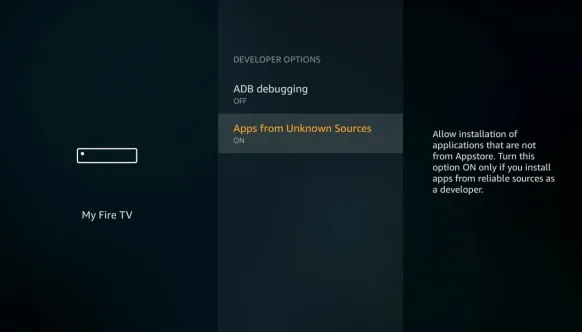
If you have a Fire OS 5 or Fire OS 6 device, including all other devices, select Apps
from Unknown Sources to change the setting to ON.
Now, go to your list of apps on the Fire TV Home screen and open the Downloader app.
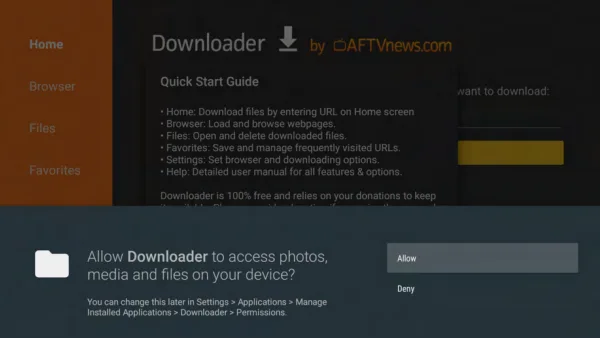
If you have a Fire OS 6 or Fire OS 7 device, you will be asked to allow Downloader
access to files on your device as soon as you launch the app. Select Allow.
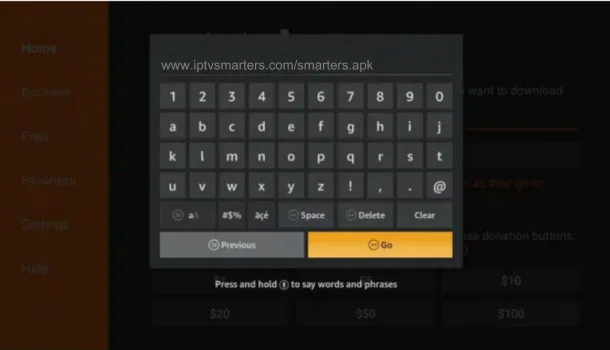
Enter the Smarters Player URL to sideload the Smarters Player APK and select the
Go button. https://www.iptvsmarters.com/smarters.apk Because the URL is direct to the APK
file, the file will begin to download. Use the circular UP/DOWN/LEFT/RIGHT buttons
to find or enter the download link and click it by using the center select button on your
remote.
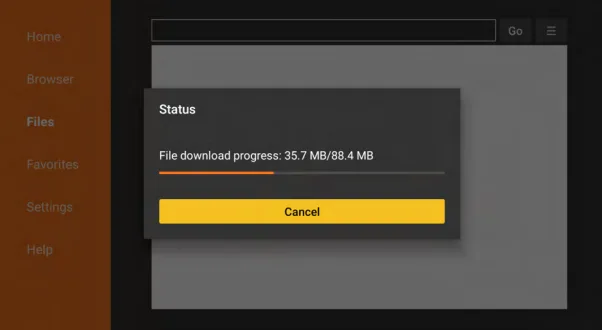
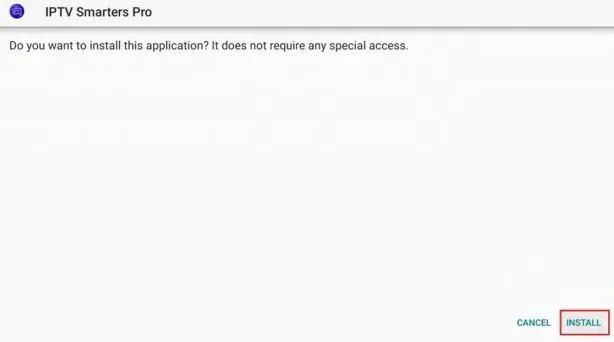
After the APK file downloads, you will be asked to install the app. Press Down and Right
on the remote a few times until the Install button is highlighted. Press the center Select
button on the remote to begin installing the app and select Done when it’s finished
installing.
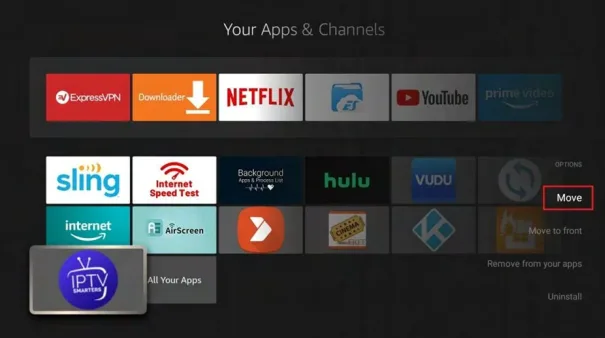
You’re done and you can now launch the Smarters Player app. To do so, go to your
list of apps by pressing the home button on your remote control and selecting
the Apps option. You will see the Smarters Player app, go ahead and select it.
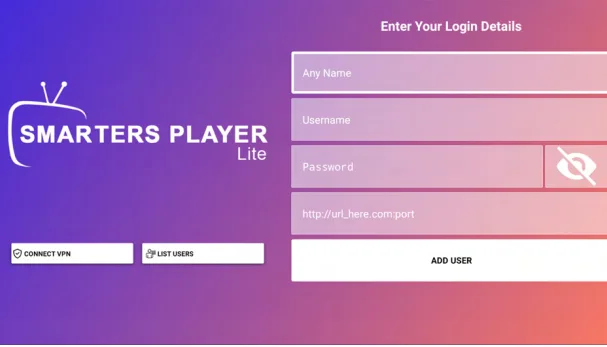
The two options that you can set before logging in to the platform are as follows:
• Connect VPN
• Refresh DNS
Our VPN option is a great choice when for example your ISP is preventing you to watch
IPTV. Using this option will allow you establish an encrypted connection from your
internet to our Platform bypassing ISP restrictions. We don’t recommend using a VPN
connection if you don’t face connectivity issues to our platform. If you don’t face any
connectivity issues, please go to Page 16.
• URL
Use this option if you would like to add the certificate file via inserting your certificate
URL. Tap the IMPORT button once done.
• FILE
Use this option if you would like to locate your certificate file from the internal storage of
your mobile device. Tap the BROWSE button to locate the file.
Clearing your DNS will help you to avoid any problems with internet connectivity and
security.
You can use this option if the IP addresses or other cached information is causing
trouble for logging in, as well as refreshing it so that everything works smoothly again!
4. After you have registered and created an account on our website, you are now
ready to use it for the first time. Select XTREAM CODES
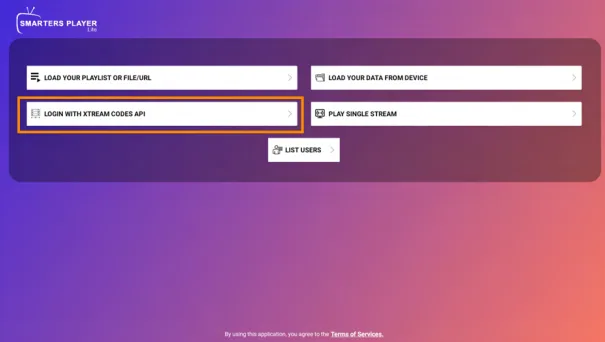
For the best performance, always use Xtream Codes. It automatically organizes your channel list and updates your guide (EPG) every time you start the app.
Immediately after login, a white screen appears saying ‘Please wait, while we are
getting things ready for the first time’ and ‘Downloading Channels, Movies and Series’.
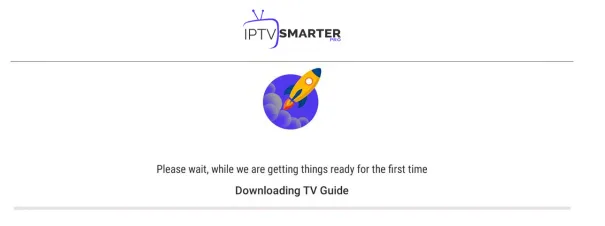
After that it takes you directly to the home screen.
Setting up IPTV doesn’t require expert coding skills or expensive gear. It’s a fast and simple process that anyone can do. Whether you have a high-end OLED or a budget LED TV, this guide will help you get your favorite channels running in minutes.
According to technical standards for Internet Protocol television, your streaming quality is only as good as the hardware and connection behind it. To enjoy smooth, high-quality streaming without buffering, make sure you have these four things ready:
Fast Internet: You need at least 50 Mbps for 4K quality.
A Wired Connection: Use an Ethernet cable instead of Wi-Fi if possible; it’s much more stable.
An IPTV Subscription: Sign up for a plan that fits your needs.
Your Login Info: Keep your Xtream Codes or M3U link (sent by your provider) handy.
Not all Smart TV operating systems are built the same way. Different TVs use different systems. Here is how to find the right apps for yours:
Samsung TVs are secure but can be picky with apps. Open the Samsung App Store and search for verified players like IBO Player or Nanomid. These are built specifically to run smoothly on Samsung processors.
LG makes things very easy. Use your “Magic Remote” to open the LG Content Store. Search for popular apps like Smart IPTV or IPTV Smarters to get started.
These are the most flexible TVs. Since they use the Google Play Store, you have access to almost any IPTV app available. They work very much like a smartphone.
| App Name | Recommended For | Key Feature |
|---|---|---|
| IPTV Smarters Pro | All Beginners | Most user-friendly interface. |
| TiviMate | Android TV Users | Professional cable-TV feel. |
| IBO Player | Samsung & LG | Fastest zapping speeds. |
Once you’ve picked an app, follow these five simple steps:
Turn on your TV and press the Home button.
Go to the App Store (search bar).
Type in the name of the app (e.g., “IPTV Smarters”).
Click Install or Download.
Open the app once it’s finished.
When you first open the app, it will be empty. You need to “feed” it your subscription info using one of these two methods:
This is the most professional way because it automatically organizes your channels and TV guide.
Select “Login with Xtream Codes API.”
Enter the Username, Password, and Server URL from your provider.
Click “Add User” and wait for the channels to load.
If your provider gave you a very long web link (URL):
Select “Load Your Playlist.”
Carefully type in the link.
Tip: Many apps let you do this on a laptop or phone so you don’t have to type a long link using a TV remote.
“Invalid Details”: This is usually a typo. Double-check your capital letters and numbers!
Channels Won’t Load: Your internet provider might be blocking the stream. Using a VPN usually fixes this immediately.
App is Missing: If you can’t find an app in your store, it might be restricted in your region.
Use 5GHz Wi-Fi: If you can’t use a cable, make sure you are on your router’s 5GHz band for more speed.
Clear the Memory: Close other apps (like Netflix or YouTube) before opening IPTV to prevent lagging.
Reboot Weekly: Restart your router once a week to keep your connection fresh and fast.
IPTV Dubai is a trusted IPTV service provider delivering premium TV streaming across Dubai and the Gulf region.
Dubai, UAE
+971 50 343 2582
+971 50 343 2582
© 2025 IPTV Dubai. All rights reserved.Build by Shihab Mahmud